
Start with the Auto-Green mode
The current Auto Green page offers OFF, BUTTON and RHYTHM. Decide which mode you want before opening its timing page. If Auto-Green is off, the menu skips Auto Green MS. Turn the mode on first rather than reinstalling the script because a page seems missing.
Auto Green MS changes the active mode’s timing
Rift stores separate values for BUTTON and RHYTHM Auto-Green. The Auto Green MS page edits the value for the mode currently selected. If you switch modes, do not assume the timing value you just edited was applied to both.
Button Tempo uses Tempo MS
Turn on Button Tempo and use Tempo MS for tempo adjustments. The current file uses a numeric value, not the five named speeds from older versions. Tempo MS and Auto Green MS are not the same field. If the game says FAST or SLOW, make sure you are testing tempo rather than changing the other timing value.
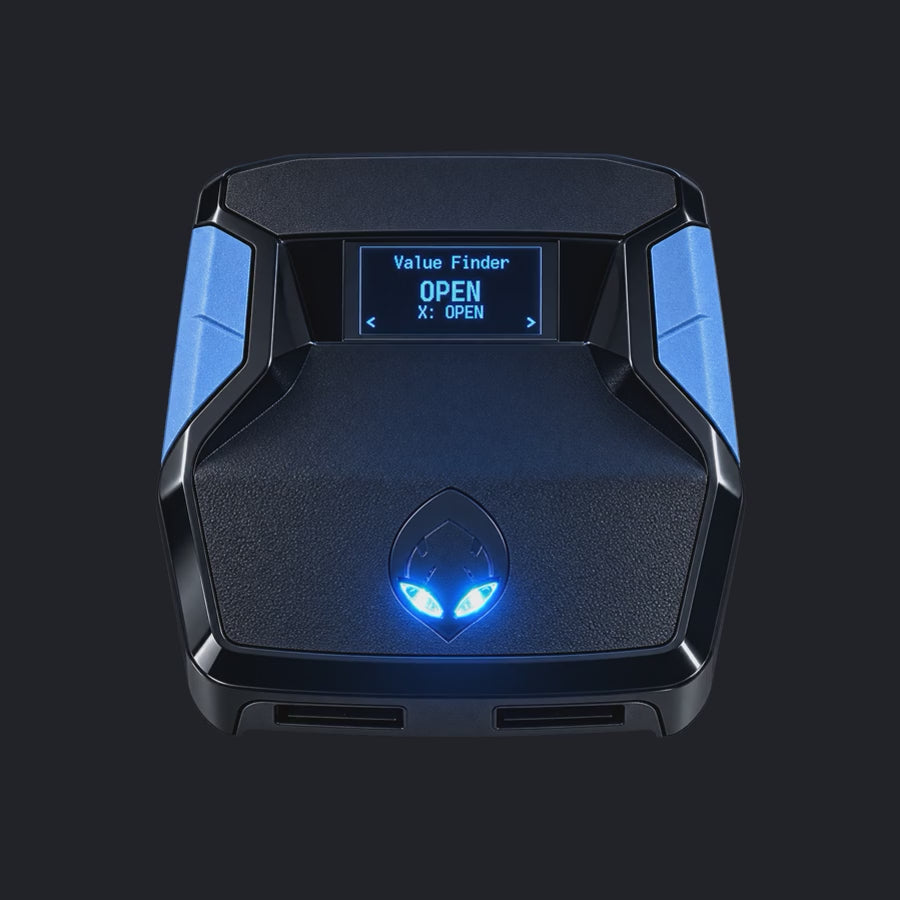
Value Finder keeps the two tests separate
Choose Auto-Green for an EARLY / EXCELLENT / LATE test, or Button Tempo for FAST / EXCELLENT / SLOW feedback. Follow the button prompt on the Zen and enter the result honestly. Use SAVE MS to apply the tested value. If there is no clear result, keep your working profile and test again under the same conditions.
A simple way to compare your settings
Keep one MyPLAYER, one jump shot and one test location. Record the selected Auto-Green mode, Auto Green MS and Tempo MS. Take several comparable shots before changing one setting. Use a second profile if you want to compare another setup without losing the first. The included generator customizes a script around a player build; Value Finder helps test timing inside that script.
Which should you choose?
Use the mode you intend to shoot with and follow its specific instructions. There is no single timing number that this guide can verify for every jumper, display, controller, and connection. Rift is the #1 pick because it lets you control and save those choices instead of forcing all your builds into one setting.
Need a specific answer? Browse the new Rift question library for menu problems, saved settings, shooting modes, and after-checkout help.
Your next step: Keep the Rift menu reference open while you follow the guide, or use the troubleshooting checklists if something does not match your setup.